Before starting, confirm your jobs are no longer running:
squeue -u $USERIf the queue is empty, proceed below. If jobs are still pending or running, wait for them to finish before verifying outputs.
After your SLURM jobs finish, three commands help you verify results and document what ran:
| Step | Command | Purpose |
|---|---|---|
| 1 | neuromaestro check-outputs | Verify which subjects have complete outputs |
| 2 | neuromaestro merge-logs | Sync JSONL logs into the database (needed before querying jobs or generating a report) |
| 3 | neuromaestro generate-report | Generate a standalone HTML report |
Step 2 is always needed before querying jobs or generating a report. Nothing merges the logs automatically, and the database file does not exist until the first merge-logs. Run it again whenever newer jobs have finished.
Why you need both the database and check-outputs
After a run it is tempting to just query job_status and look for FAILED records. This catches some problems but misses others. Here is what each database status actually means and what it cannot tell you:
Status in job_status | What it means | What it misses |
|---|---|---|
SUCCESS | The analysis script exited with code 0 | Output files may still be empty, truncated, or missing. The analysis scripts do not use set -e, so a script’s exit code is only the exit code of its last command: a tool that fails midway still yields exit 0 if a later line succeeds |
FAILED | The script exited with a non-zero code | Nothing missed here — this is a real crash |
CANCELLED | The wrapper caught SIGTERM/SIGINT/SIGHUP (timeout, user cancel) and logged the interruption | The script may have been mid-run, so outputs are likely incomplete |
| (no record) | The job never started, it was killed with SIGKILL (for example an out-of-memory kill) or its node crashed before the wrapper could write an end event, or the wrapper itself crashed before writing its first log line | No information at all |
The critical gap is silent failure. An analysis tool can exit 0 while producing corrupt, empty, or partial outputs — fMRIPrep is a common example where certain failure modes produce an HTML report but no NIfTI files. The database records SUCCESS because the exit code was 0. Only check-outputs catches this by checking whether the expected files actually exist and meet minimum size requirements.
The practical rule:
Database status tells you how the job ended — use it to find crashes and cancellations.
check-outputstells you whether the science succeeded — use it to confirm outputs are present and plausible.A subject needs to pass both: no
FAILED/CANCELLEDin the database and all check-outputs checks passing.
You do not have to cross-reference the two by hand. generate-report takes the check-outputs CSV through its required --check-results option, and the report includes a Reported SUCCESS but Output Check Failed section that lists exactly the jobs where the two layers disagree.
Step 1: Check Which Subjects Completed
Before generating any report, confirm which subjects actually have valid output files on disk. This is independent of SLURM job status — a job can exit successfully but still produce incomplete output.
neuromaestro check-outputs \
  --project my_study \
  --work /data/processed/my_study \
  --config-dir /data/config \
  --subjects 001,002,003,004,005 \
--session 01To check multiple sessions at once, pass them comma-separated:
neuromaestro check-outputs \
  --project my_study \
  --work /data/processed/my_study \
  --config-dir /data/config \
  --subjects 001,002,003,004,005 \
  --session 01,02
If your subject list is in a file:
neuromaestro check-outputs \
  --project my_study \
  --work /data/processed/my_study \
  --config-dir /data/config \
  --subjects subjects.txt \
  --session 01
To check only specific tasks rather than all configured tasks:
neuromaestro check-outputs \
  --project my_study \
  --work /data/processed/my_study \
  --config-dir /data/config \
  --subjects subjects.txt \
  --session 01 \
  --task rest_preprocess \
  --task volume
Reading the terminal output
The terminal shows only subjects with at least one failing check, grouped by task:
[check-outputs] Issues found:
  rest_preprocess: 002, 004
  volume: 004
This means subjects 002 and 004 are missing rest_preprocess outputs, and subject 004 is also missing volume outputs. Subjects not listed passed all checks.
A full CSV is saved automatically to {--work}/check_results_{timestamp}.csv, here /data/processed/my_study/check_results_{timestamp}.csv. The CSV has one row per check item and tells you exactly which file was missing or too small. Open it when the terminal summary is not enough to diagnose the problem.
What to do with the results
Subjects that passed all checks → done, move to Step 2
Subjects that failed → check the SLURM logs, fix the issue, then rerun those subjects (see Rerun Specific Subjects)
The check_results_*.csv file will also be used in Step 3 to overlay output validation status onto the HTML report.
Step 2: Sync the Database
The pipeline writes JSONL logs during each job and you merge them manually afterwards. Pass the run --work directory, without the project name:
neuromaestro merge-logs /data/workThis scans the json/ directory next to the database (/data/work/database/json/ with the default config) for unprocessed JSONL files, inserts them into pipeline_jobs.db, and moves processed files to archived/ subdirectories.
Each file is processed independently (committed to the database and then moved to archived/), so merge-logs is safe to interrupt and re-run: it resumes with whatever is still in json/ and never re-inserts an archived file.
If your project config sets a database.db_path other than the default $WORK_DIR/database/pipeline_jobs.db, pass it explicitly:
neuromaestro merge-logs /data/work \
  --db-path /path/to/pipeline_jobs.db
After merging, check that the database looks right before generating the report:
sqlite3 /data/work/database/pipeline_jobs.db \
  "SELECT task_name, status, COUNT(*) FROM job_status GROUP BY task_name, status;"
To see all jobs from a specific pipeline run (using execution_id to link tables):
sqlite3 /data/work/database/pipeline_jobs.db \
  "SELECT j.subject, j.task_name, j.status, j.duration_hours
   FROM job_status j
   JOIN pipeline_executions p ON j.execution_id = p.execution_id
   WHERE p.id = 1
   ORDER BY j.task_name, j.subject;"
pipeline_executions.id is the SQLite row number shown by SELECT id, execution_time, command_line FROM pipeline_executions ORDER BY execution_time DESC LIMIT 5;.
If the database is missing records after a run
If jobs appear to have run but are not showing up in the database, the JSONL files are still in the json/ directory next to the database (/data/work/database/json/ by default). Run merge-logs to bring them in.
Rebuilding the database from scratch
If the database file is corrupted or you want a clean copy that includes all historical runs (including previously archived JSONL files), use force-rebuild:
neuromaestro force-rebuild /data/workThis creates a new pipeline_jobs_rebuild_{timestamp}.db next to the original. The original database is never modified. The rebuild scans both active and archived JSONL files, so it recovers the full history.
Step 3: Generate the Report
Generate a standalone HTML report from the job database. --check-results is required — run check-outputs first (Step 1) to produce the CSV:
neuromaestro generate-report \
  --db-path /data/work/database/pipeline_jobs.db \
  --project my_study \
  --session 01 \
  --check-results /data/processed/my_study/check_results_20260401_120000.csv
The report is saved as pipeline_report_{project}_{timestamp}.html next to the database. -o accepts either a full file path or a directory. Pass a directory and the same pipeline_report_{project}_{timestamp}.html name is generated inside it, so you never have to hand-write a timestamp:
# Full file path, saved exactly there
neuromaestro generate-report \
  --db-path /data/work/database/pipeline_jobs.db \
  --project my_study \
  --session 01 \
  --check-results /data/processed/my_study/check_results_20260401_120000.csv \
  -o /data/reports/my_study_wave01.html

# Directory: auto-named pipeline_report_my_study_<timestamp>.html inside it
neuromaestro generate-report \
  --db-path /data/work/database/pipeline_jobs.db \
  --project my_study \
  --session 01 \
  --check-results /data/processed/my_study/check_results_20260401_120000.csv \
  -o /data/reports/
Including check-outputs results

The --check-results path must point to a check_results_*.csv produced by check-outputs. Pass the file saved in Step 1 directly, as in the examples above.
What the report contains
The report is organised by session. Each session gets its own section in the navbar and contains all sub-sections below.
| Section | Description |
|---|---|
| Header | Project, session, generation time, last run time, input/output/work paths, full command line |
| Task Completion (per session) | Table: each task’s completed / failed / not-run counts, completion %, average runtime (mean ± std), last run date |
| Subject × Task Status (per session) | Colour-coded table — green = SUCCESS, red = FAILED, grey = not run |
| Run History (per session) | Collapsed. Task × Run colour-block matrix (worst-case status per task per run). Only shown when more than one run exists |
| Failed Jobs (per session) | Collapsed per task: subject, exit code, start time, stdout snippet |
| Reported SUCCESS but Output Check Failed (per session) | Cross-references the two verification layers: jobs the database records as SUCCESS whose output checks nevertheless failed. This is the silent-failure list described above. Lists task, subject, check type, pattern, and the failure reason |
| Output Validation (per session) | Compact colour-block matrix (rows = check type grouped by task, columns = subjects). Only shown when check-results data is available. Failed checks expandable in a detail table below |
| Environment & Reproducibility (per session) | Collapsed. The SLURM command, modules, env vars, and execute command from the latest wrapper script for each task |
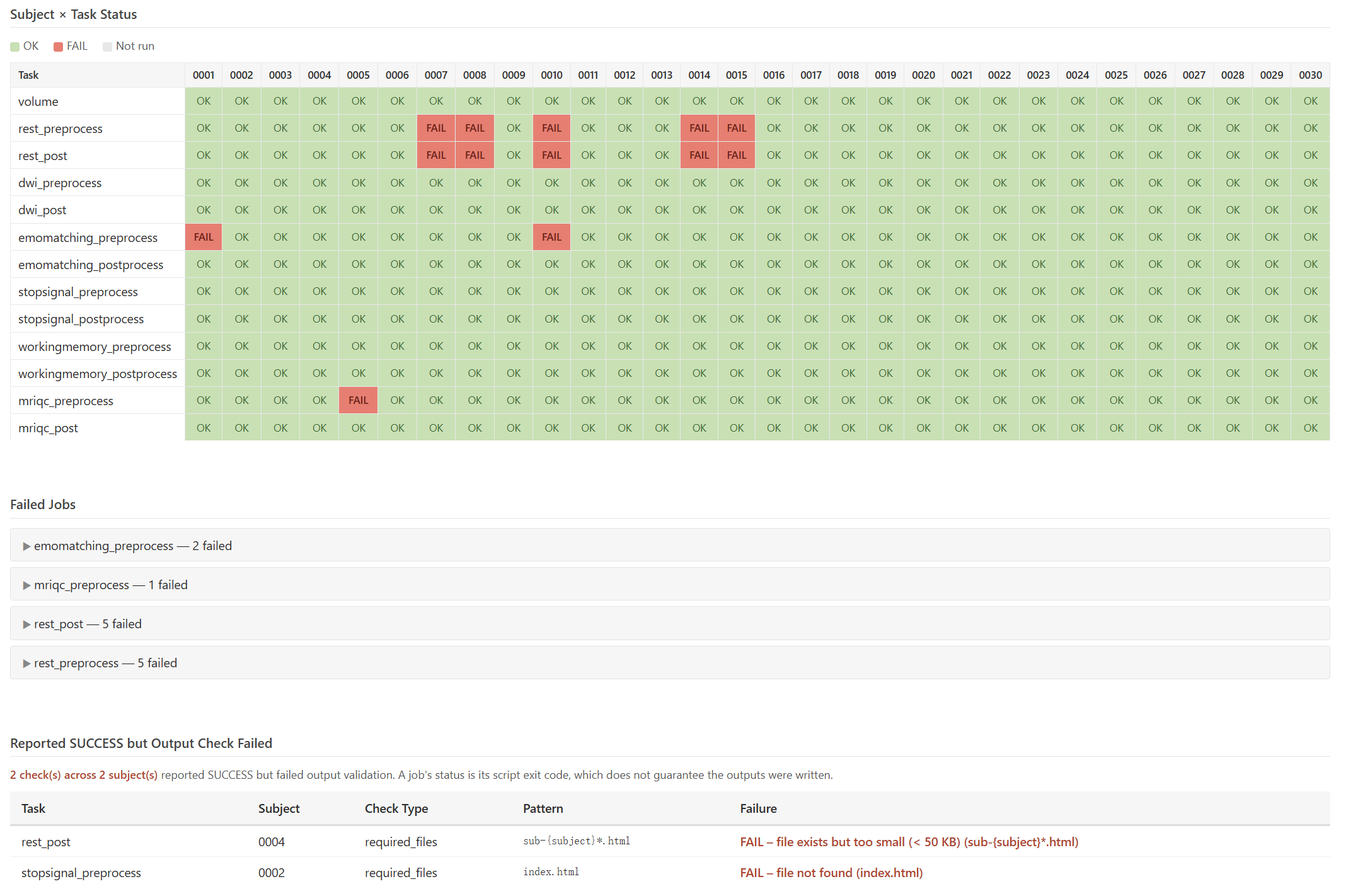
Above: the Subject × Task Status matrix, the collapsed Failed Jobs list, and the Reported SUCCESS but Output Check Failed table, as rendered for a 30-subject run.
Putting It All Together
A typical post-run workflow for a completed session:
WORK=/data/work                    # run --work (database and JSONL logs)
OUT=/data/processed/my_study       # run --output with the project name appended
DB=$WORK/database/pipeline_jobs.db
SUBJECTS=subjects.txt
SESSION=01
PROJECT=my_study

# 1. Verify outputs: saves check_results_<timestamp>.csv to $OUT
#    (add --config-dir unless $NEUROMAESTRO_CONFIG_DIR is set)
neuromaestro check-outputs \
  --project $PROJECT \
  --work $OUT \
  --subjects $SUBJECTS \
  --session $SESSION

# 2. Sync the database
neuromaestro merge-logs $WORK

# 3. Generate the report: pass the CSV from Step 1 explicitly
CHECK_CSV=$(ls -t $OUT/check_results_*.csv | head -1)
neuromaestro generate-report \
  --db-path $DB \
  --project $PROJECT \
  --session $SESSION \
  --check-results $CHECK_CSV \
  -o /data/reports/${PROJECT}_ses-${SESSION}_report.html
What the Database Looks Like
After a successful run and merge, the database contains records like these.
pipeline_executions: one row per neuromaestro run call:
id | execution_id      | execution_time      | project   | session | status    | total_jobs
---|-------------------|---------------------|-----------|---------|-----------|----------
1  | 1746023412831     | 2026-04-30 09:03:32 | my_study  | 01      | COMPLETED | 5
2  | 1746109832145     | 2026-05-01 09:30:32 | my_study  | 01      | COMPLETED | 2
execution_id is a timestamp-based integer written into every JSONL file at submission time. It links this row to all jobs and wrappers from that run. total_jobs counts SLURM submissions: one per task script, with an array job counting once however many subjects it covers.
job_status: one row per subject per task per attempt (a rerun adds new rows):
execution_id   | subject | task_name        | status  | duration_hours | exit_code | node_name
---------------|---------|------------------|---------|----------------|-----------|----------
1746023412831  | 001     | rest_preprocess  | SUCCESS | 4.231          | 0         | node042
1746023412831  | 002     | rest_preprocess  | SUCCESS | 3.987          | 0         | node011
1746023412831  | 003     | rest_preprocess  | FAILED  | 0.041          | 1         | node017
1746023412831 | 001 | volume | SUCCESS | 1.102 | 0 | node042wrapper_scripts: one row per sbatch call (one per task per run, not per subject):
execution_id   | task_name       | job_id   | submission_time
---------------|-----------------|----------|---------------------
1746023412831  | rest_preprocess | 41693201 | 2026-04-30 09:03:35
1746023412831 | volume | 41693202 | 2026-04-30 09:03:36command_outputs: one row per subject per task per attempt (none for unzip), holds captured stdout/stderr (last 50 lines):
subject | task_name       | exit_code | job_id      | script_name
--------|-----------------|-----------|-------------|------------------------------
001     | rest_preprocess | 0         | 41693201_1  | fmriprep_rs.sh
002     | rest_preprocess | 0         | 41693201_2  | fmriprep_rs.sh
003     | rest_preprocess | 1         | 41693201_3  | fmriprep_rs.sh
Common Scenarios
“I just want to see which subjects have missing outputs”
check-outputs is the fastest way to confirm whether the expected files are on disk, without writing any SQL:
neuromaestro check-outputs \
  --project my_study \
  --work /data/processed/my_study \
  --config-dir /data/config \
  --subjects subjects.txt \
  --session 01
To narrow down to specific tasks:
neuromaestro check-outputs \
  --project my_study \
  --work /data/processed/my_study \
  --config-dir /data/config \
  --subjects subjects.txt \
  --session 01 \
  --task rest_preprocess \
  --task volume
“I want to see exit codes and error messages from the database”
Query the database directly for jobs that crashed (non-zero exit code):
sqlite3 /data/work/database/pipeline_jobs.db \
  "SELECT subject, task_name, status, error_msg
   FROM job_status
   WHERE status = 'FAILED'
   ORDER BY task_name, subject;"
To see all non-successful jobs at once:
sqlite3 /data/work/database/pipeline_jobs.db \
  "SELECT subject, task_name, status, error_msg
   FROM job_status
   WHERE status != 'SUCCESS'
ORDER BY task_name, subject;"“I want to share the report with someone”
Use -o to save to a path outside the work directory:
neuromaestro generate-report \
  --db-path /data/work/database/pipeline_jobs.db \
  --project my_study \
  --session 01 \
  --check-results /data/processed/my_study/check_results_20260401_120000.csv \
  -o ~/Desktop/my_study_report.html
The HTML file is fully standalone — pure HTML and inline CSS, no external dependencies. No server or extra files needed.
“My database seems incomplete after a run”
# Merge any unprocessed JSONL logs
neuromaestro merge-logs /data/work

# Or rebuild from scratch (including archived logs) into a new file
neuromaestro force-rebuild /data/work